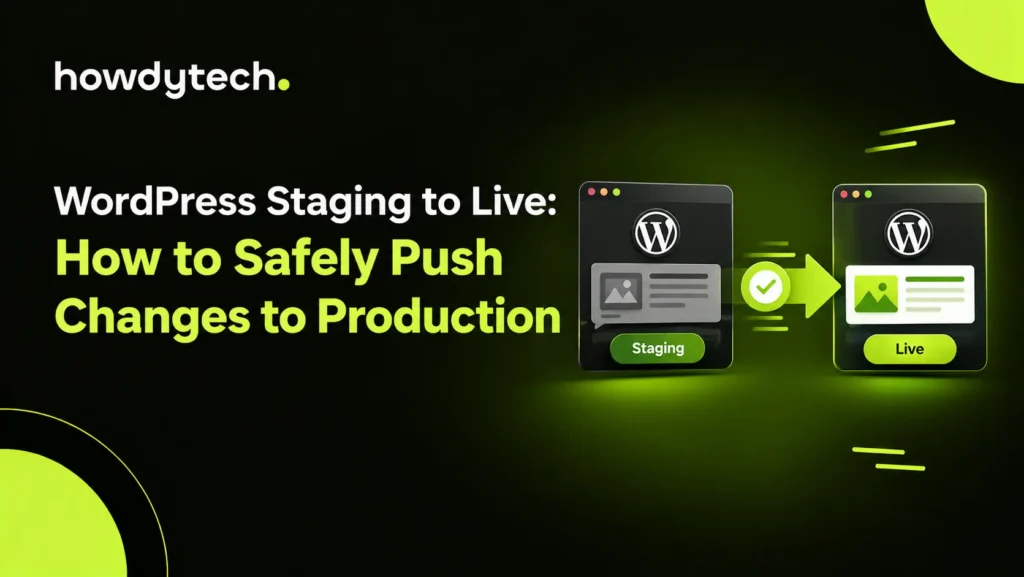
Moving WordPress staging to live means deploying tested changes from a private staging environment to your public production site. The safest WordPress push staging to live process starts with a verified backup, identifies exactly what changed, protects newer live activity, and deploys only the required files or database content. A full overwrite is not automatically safer than a selective deployment because live orders, users, forms, comments, and content may have changed after staging was created. Howdy Tech approaches staging site migration as a controlled deployment: test first, compare scope, preserve live data, then verify production after release.
What Should You Move From Staging to Live?
Move only the files, database records, or combination required for the tested change. A WordPress staging site usually contains themes, plugins, media, content, settings, users, and other database records. Files and database content have different deployment effects, so identify the change before choosing a push method.
Use files only for isolated theme, plugin, stylesheet, template, or custom-code changes when the tested feature does not depend on database settings. Use selected database content when you change pages, posts, menus, widgets, plugin configuration, or other stored settings. Use files and database together for a complete redesign or coordinated release only after checking newer production activity.
A full database push can replace live records that do not exist on staging. The risk matters most for WooCommerce stores, membership websites, communities, booking systems, and sites that receive forms or registrations. A staging copy can be older than production even when the files appear identical.
The correct scope is therefore based on data integrity, not convenience. A selective push is appropriate when the tested change has a narrow footprint. A broader deployment requires a clear rollback plan and confirmation that production changes can be preserved or temporarily paused.
How Do You Prepare Before a Staging to Live Deployment?
Create and verify a complete production backup before deployment. The backup should include the database and website files, finish successfully, and remain accessible outside the live installation. A backup is useful only when you can restore it.
Complete the Pre-Flight Checklist
Before deployment, follow a website migration checklist to confirm backups, URLs, access, compatibility, and rollback requirements. Record the changes that must reach live, then compare those changes with activity that occurred on production after staging was created.
Check these items:
- Confirm WordPress core, PHP, plugins, themes, and server requirements are compatible.
- Create a fresh backup of production and verify the backup contains files and database data.
- Create a staging backup when the staging tool supports restore points.
- Record changed themes, plugins, custom code, media, pages, menus, and settings.
- Check production for newer orders, customers, users, comments, forms, bookings, posts, and settings.
- Confirm the destination is production, not another staging environment.
- Review the deployment tool’s overwrite summary before approving the operation.
- Prepare a maintenance window when active transactions could conflict with the deployment.
- Keep administrator access, hosting access, database access, and rollback credentials available.
Do not assume that a staging site must remain 100% synchronized with production. The two environments should remain sufficiently aligned for testing, but production can receive legitimate activity while staging contains development changes. Your workflow must account for that difference.
How Do You Push WordPress Staging to Live Safely?
To push staging to production safely, back up live, select the smallest required scope, review overwrites, execute the deployment, and verify every critical function. The exact interface depends on your hosting provider or staging tool, but the deployment logic remains consistent.
First, open the staging-to-live deployment controls from the production environment. Confirm the source staging site and destination production site. Review the files selected for synchronization and remove folders that contain unrelated development changes.
Next, review database scope. A table can contain records unrelated to the feature you tested, so do not select the full database simply because a plugin changed one setting. Select only the required tables or records when your tool supports that level of control.
Be especially careful with WooCommerce and other transactional systems. A database push can overwrite newer orders, customer accounts, submissions, or other live records. Preserve those records through selective deployment, a controlled maintenance window, or a workflow that repeats the tested change on production.
Before confirmation, read the overwrite summary. Check whether the deployment deletes files, replaces uploads, removes plugins, overwrites database tables, or changes administrator data. Stop the process when the scope includes live data that must remain.
Start the push only after the source, destination, files, database scope, and rollback plan are confirmed. Do not edit production during the transfer unless your deployment procedure specifically requires it.
Can You Push Only Database Changes?
Yes, you can push only database changes when the tested update exists in stored WordPress content or settings and the deployment tool supports database-only scope. This approach leaves production files untouched and reduces unnecessary file synchronization.
Database-only deployment can suit new pages, posts, menus, widget settings, plugin configuration, and other stored changes. The exact tables depend on the feature and WordPress configuration.
Can You Push Only Files?
Yes, you can push only files when the tested change exists entirely within theme, plugin, stylesheet, template, or custom-code files. File-only deployment avoids replacing database content and is often appropriate for isolated development changes.
Select only the changed folders or files. Check whether the change depends on plugin settings, database-stored templates, generated assets, or other records. A file update can appear successful while a required database setting remains absent from production.
Remove staging-only development plugins or tools from production after deployment. Confirm that debugging, test integrations, local services, and temporary configuration do not remain active.
How Do You Handle a Full Staging Site Migration?
Use a full staging site migration only when both files and database content represent the intended production state and newer live activity has been protected. A full migration replaces a broad scope and therefore requires stronger validation than a selective deployment.
Create the production backup first. Compare the staging and production timestamps, identify live changes, and decide whether a maintenance window can prevent new transactions during deployment. Confirm the migration tool handles the site URL, home URL, serialized data, uploads, permissions, and configuration correctly.
How Do You Replace Staging URLs With the Live URL?
Replace staging URLs with the production site URL using a WordPress-aware search-and-replace method that handles serialized data safely. A basic text replacement can corrupt serialized values because serialized strings store character lengths.
Check the database for the staging domain, including values stored by plugins and custom tables. Replace the staging URL with the live URL only after confirming the production domain and protocol, such as HTTPS.
Review both the WordPress Address and Site Address values. Test internal links, images, stylesheets, scripts, canonical URLs, redirects, REST endpoints, and embedded media after replacement.
Do not change URLs blindly across the database. A staging environment may contain legitimate external URLs, webhook addresses, API endpoints, or test services that should not become production URLs.
What Should You Check After Deployment?
Verify the live site from the visitor, administrator, and integration perspectives before considering deployment complete. A working homepage does not prove that forms, authentication, payments, APIs, or scheduled processes work correctly.
Open production in a private browser session and test the homepage, representative pages, navigation, images, downloads, redirects, HTTPS, and the exact feature changed on staging.
Log into WordPress administration and confirm permissions, menus, settings, plugins, themes, media, and editor functions. Test forms with safe data and verify delivery to the intended production mailbox.
Inspect browser console errors and server or PHP logs. Check the WordPress REST API, XML sitemaps, robots directives, analytics, scheduled tasks, and connected services when the deployment affects those systems.
Howdy Tech can help businesses manage controlled WordPress deployments, testing, and post-deployment verification.
What If the WordPress Push Fails?
If a push fails, stop additional changes, identify the failed component, and use the verified backup for rollback when the production state cannot be trusted. Do not continue modifying production while the cause remains unclear.
A timeout can result from large databases, server limits, memory constraints, database query limits, or transfer restrictions. Check hosting and PHP logs for the exact failure.
Broken images, mixed-content warnings, REST errors, or redirects can indicate incomplete URL replacement. Search for the staging domain and review serialized plugin data.
A white screen or fatal error can indicate plugin incompatibility, PHP differences, missing files, or configuration conflicts. Enable debugging only when needed, inspect the logs, then disable debugging after diagnosis.
If administrator access fails after a database push, staging user data may have replaced production users. Use the approved database recovery method or restore the pre-deployment backup rather than making unrelated edits.
A rollback should return production to the known pre-deployment state. After recovery, document the failed scope, narrow the deployment, correct the underlying issue, and repeat testing on staging before another release.
A documented deployment checklist makes repeat releases easier to audit, troubleshoot, and review.
Frequently Asked Questions
1. How do you move a WordPress staging site to live?
Move a WordPress staging site to live by backing up production, reviewing the deployment scope, selecting required files or database content, confirming overwrite warnings, and executing the push. Verify pages, forms, logins, integrations, URLs, caches, redirects, and critical functions immediately after deployment.
2. What should you check before moving WordPress from staging to live?
Check the production backup, staging changes, software compatibility, newer live activity, deployment destination, file scope, database scope, and rollback plan before moving WordPress. Pay particular attention to orders, users, forms, bookings, comments, and other records that production may have received since staging was created.
3. How do you migrate a WordPress staging site without losing data?
Migrate WordPress without losing data by backing up production and deploying only the required files or database records. Protect newer orders, customers, submissions, and content through selective deployment or a controlled maintenance window instead of blindly replacing the complete production database and its current records.
4. How do you replace staging URLs with the live website URL?
Replace staging URLs with the live website URL through a WordPress-aware search-and-replace process that supports serialized data. Confirm the WordPress Address, Site Address, HTTPS protocol, internal links, images, scripts, redirects, canonical URLs, and plugin-specific values after replacement across production.
5. How do you test a WordPress site after moving it from staging to live?
Test a WordPress site after deployment by checking the homepage, representative URLs, navigation, images, forms, login, changed features, redirects, HTTPS, integrations, and server logs. Use safe test transactions for commerce sites, clear caches, inspect console errors, and verify critical workflows before closing deployment.
6. What common problems can occur when moving WordPress from staging to live?
Common problems include overwritten live data, broken staging URLs, serialized-data errors, plugin conflicts, PHP incompatibility, failed database imports, login issues, cache problems, and missing files. Check logs first, isolate the failed scope, and restore the verified backup when production integrity remains uncertain after deployment.